
Five situations where you need to remove image background free
Most people find background removal tools because of a specific, immediate problem. Here are the five most common ones — and why each of them needs a slightly different approach.
The product photo taken on a cluttered surface. You photographed your product on the kitchen counter, or against a wall with shelves visible behind it. Amazon, Flipkart, and most marketplace platforms require a clean white or neutral background. Reshooting takes time and the right setup. Removing the background digitally and replacing it with white takes about 20 seconds.
The LinkedIn headshot from three years ago. It was a good photo — decent lighting, you looked sharp — but it was taken at a party or at a desk with whatever was behind you at the time. A clean background turns an informal photo into a professional one without a studio session.
The logo that shows a white box on colored slides. Any logo saved as a JPG has a white background baked in. On a white page it is invisible. On a colored slide, branded document, or website with a non-white background, it becomes an obvious rectangle. Converting to a transparent PNG fixes this permanently.
The passport photo with the wrong background color. You had the photo taken but the background shade is not quite right for the application — or you want to use a phone photo with a slightly off-white wall behind you. Removing and replacing the background to the required shade is faster than rebooking a photo studio.
The WhatsApp sticker or presentation graphic. Placing a subject on a branded slide, an infographic, or a social post requires the subject to be isolated from its original background. A transparent PNG is the standard input for any design tool, video editor, or sticker creator.
How to remove image background free — what the tool actually does
When you upload an image to Utilra’s Background Remover, the AI scans the image pixel by pixel using a technique called semantic segmentation. It identifies which pixels belong to the subject — a person, a product, a logo — and which belong to the background, then removes the second group.
At the edges — around hair strands, fabric fringes, and fine object outlines — the tool uses alpha matting rather than a hard cut. Instead of each edge pixel being either fully kept or fully removed, it receives a transparency value between 0 and 100%. This is why clean results look smooth and natural rather than like a paper cutout with jagged edges.
The result is downloaded as a PNG file. PNG supports an alpha channel — the layer that stores transparency data — which JPG does not. If you want a solid background color instead of transparency (a white product background, for example), you can add that in the tool before downloading, and you can save as either PNG or JPG depending on your use.
Your image is processed and not stored — the tool does not retain your files after the session ends.
Remove image background free — what gives you clean results vs rough edges
The AI performs best with clear contrast between subject and background. A person standing against a plain painted wall, a product on a clean light surface, or a logo on a solid color — these process in seconds with smooth edges. The more visually distinct the subject is from what is behind it, the more accurate the result.
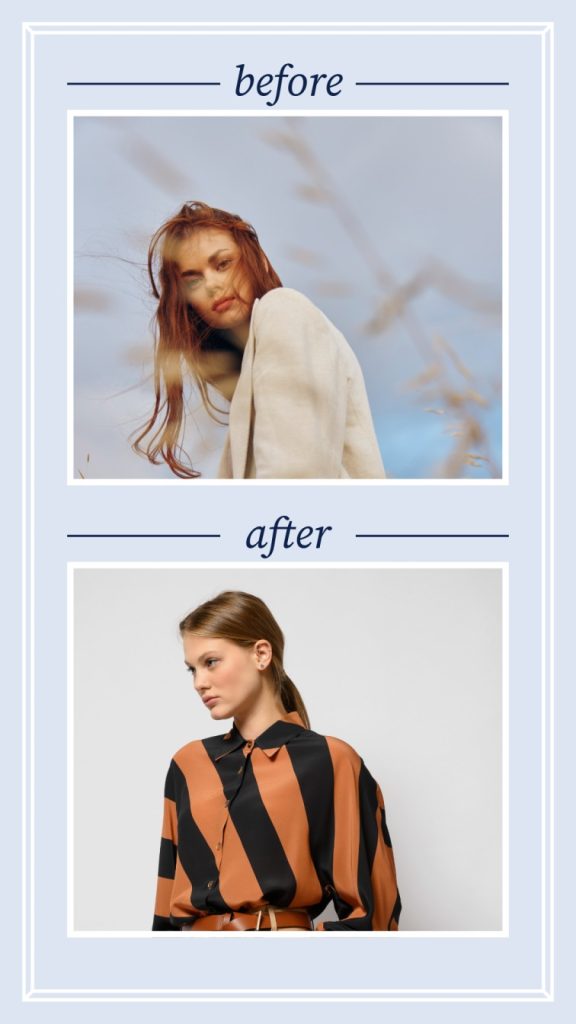
It becomes harder when subject and background share similar colors — a person in a beige outfit against a beige wall is a genuinely difficult problem for any automated tool. Very fine details against complex backgrounds (flyaway hair against a busy street scene) also reduce accuracy. Low-resolution photos and images with heavy grain give the AI less information to work with, which shows in the edges.
Three practical improvements that make a noticeable difference before uploading:
Shoot against a contrasting background if you have any control over the original photo. Even a plain bedsheet or a piece of card in a different color from your subject makes the AI’s job significantly easier. Take the photo in good light — not necessarily bright sunlight, just even and shadow-free behind the subject. Upload the highest resolution version you have; more pixels at the edge give the tool more information to work with.
For professional product photography where edge precision is the difference between a good listing and a returned order, the gap between a free online tool and a paid professional tool becomes noticeable on very fine product details. For headshots, logos, and most everyday use, the free tool covers the practical majority of cases cleanly.
Passport photos — what to check before replacing the background
Passport and visa photo requirements vary by country and are more specific than most people realize. The background color is rarely just “white” — it is often a specific shade with a defined tolerance, and the shade that fails the check is not always obviously wrong to the eye.
For Indian passports, the requirement is a plain white background. For US passports, the background must be plain white or off-white. UK passport photos require a plain cream or light grey background — not white. Several countries require that there is no shadow visible on the background behind the subject, which means the replacement background must be added cleanly with no gradient or edge shadow artifact from the removal process.
The ICAO biometric passport standards set the baseline that most countries follow. Check your specific country’s immigration authority website for the exact shade specification before submitting a digitally edited photo for any official document. A rejected passport application costs significantly more than a professional photo session.
PNG vs JPG after you remove image background free
The format you download in matters more than it might seem.
If you need transparency — so the subject can sit on any background in a presentation, website, design tool, or sticker — save as PNG. This is the only common image format that stores an alpha channel (the transparency layer). Downloading as JPG after background removal fills the transparent areas with white automatically, which defeats the purpose if you wanted the subject to float on a different background.
If you are adding a solid replacement background in the tool before downloading — a white product photo for a marketplace listing, for example — you can download as JPG. The file will be smaller and the solid-color background will render identically. JPG is also the correct format for any platform that does not support PNG uploads, which still includes a few older e-commerce systems.
For logos and graphics that will be reused across multiple different backgrounds, always keep a PNG master with transparency. You can always export a flat JPG from the PNG later, but you cannot recover transparency from a JPG once it has been saved.
Privacy — what happens to your image
For product photos, headshots, and design assets, online background removal is a practical and safe choice. The image is processed and not retained after your session.
For sensitive images — identity documents, private personal photos, anything containing confidential information — apply the same judgement you would with any online service. If the image contains information you would not share with a third party, a local desktop tool such as GIMP or Photoshop is the appropriate alternative. Free online tools process on their servers and while reputable services do not retain files, “trust but verify” is a reasonable standard for anything private.
Remove image background free — related tools on Utilra
If you are working with documents alongside images, the same browser-based approach applies to PDF tasks. Compressing a PDF without losing quality and removing a PDF password both work in your browser without uploading to a third-party server — the same privacy principle as the background remover.
For the full set of image and PDF tools available without signup, the Utilra tools page lists everything in one place.
Results from automated background removal tools vary depending on image quality, contrast, and edge complexity. For official documents including passport photos, verify background colour requirements with the relevant authority before submitting. This article is informational only.